Course overview


Collaborating with Git and GitHub


Branching and merging


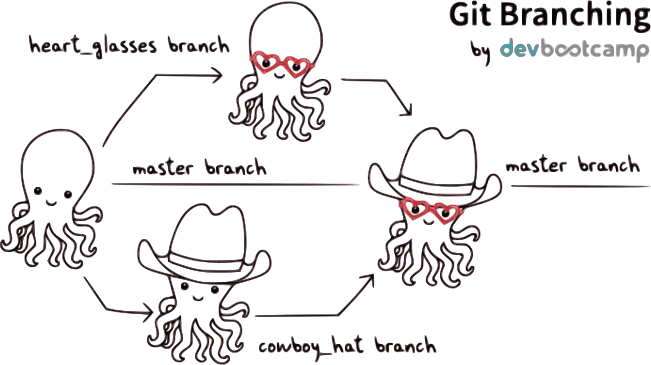
Figure 1
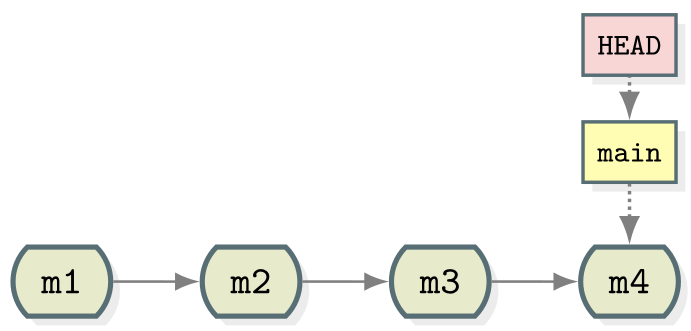
Linear git history
Linear git history

Figure 2

Example of git merge

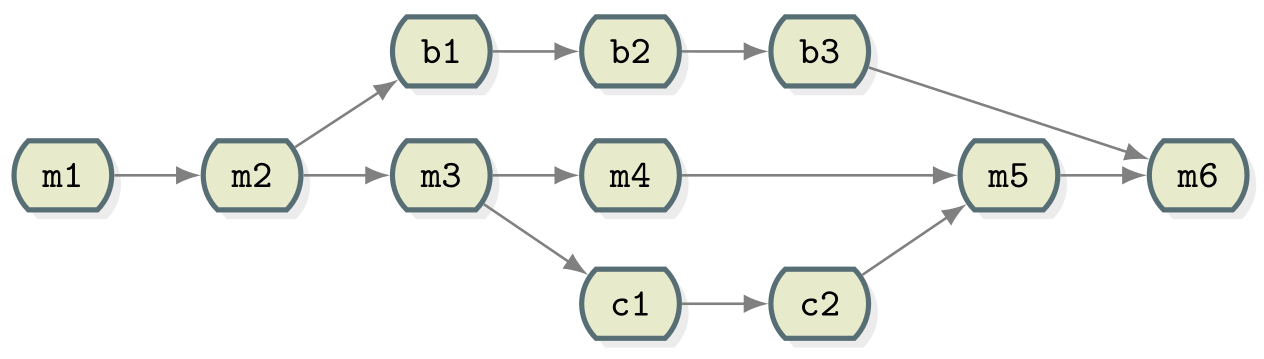
Figure 3

Example of commit history with multiple branches and merges

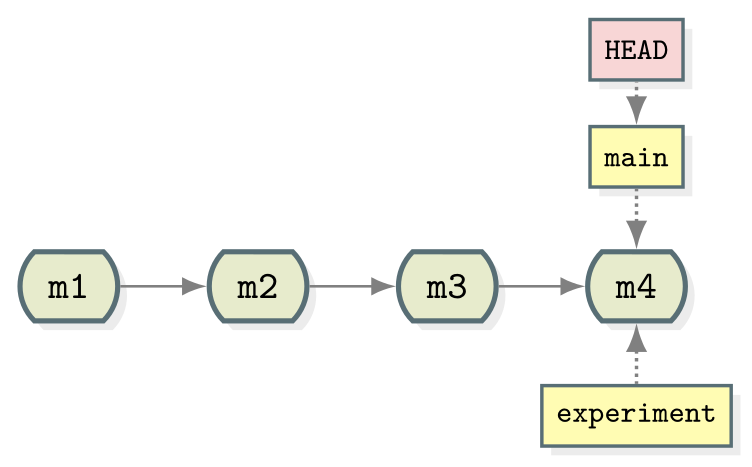
Figure 4

Repository before branching

Figure 5

Repository after experiment branch creation

Figure 6
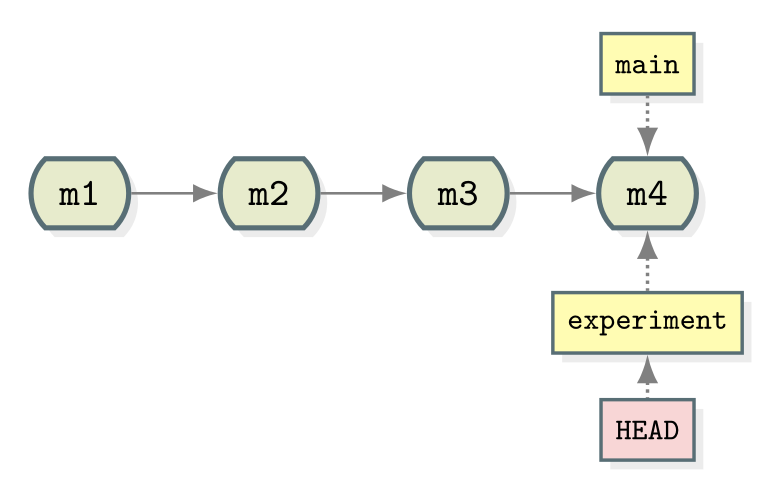
Repository with HEAD at the new experiment branch

Figure 7
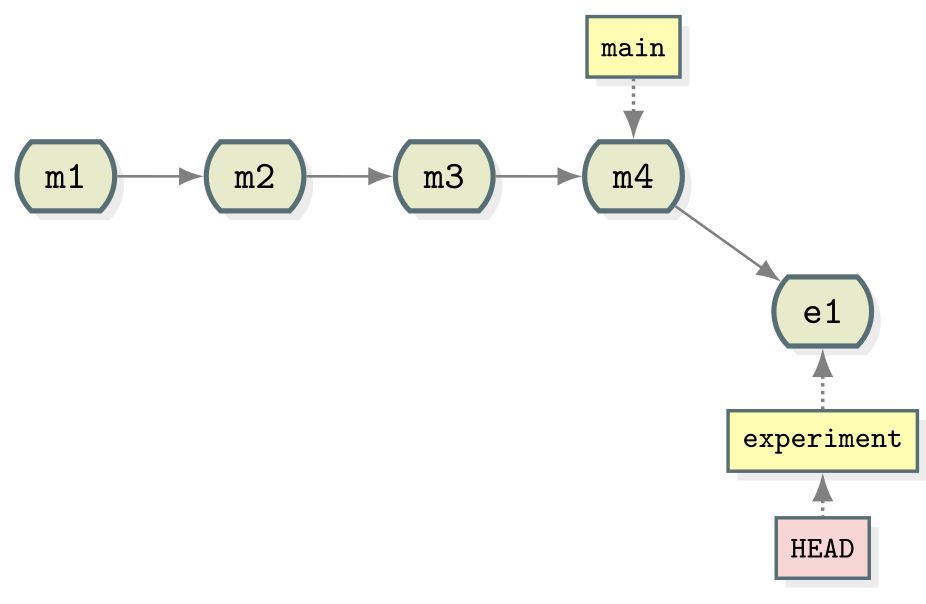
Repository with one commit on the experiment branch

Figure 8
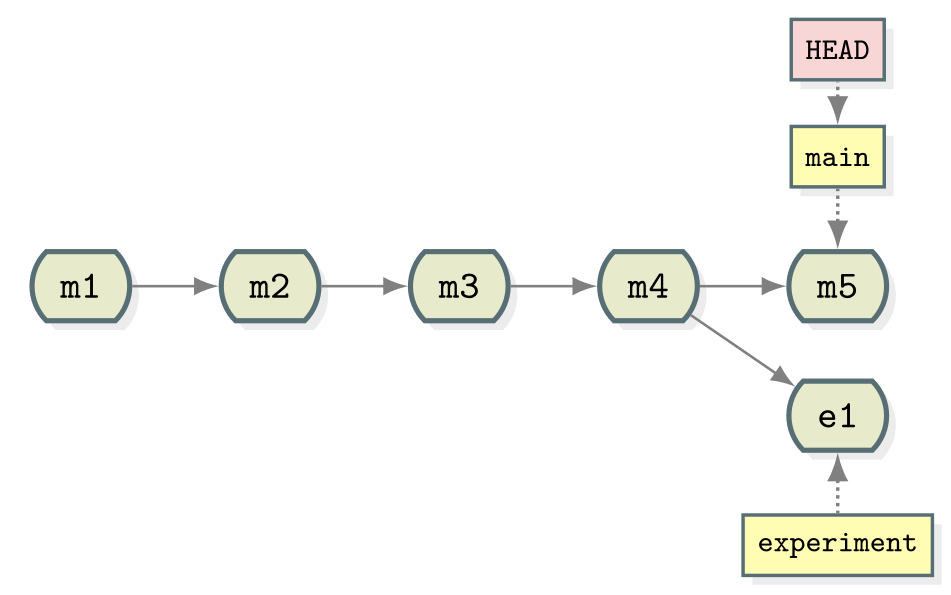
Repository with one commit each on the main and experiment branches

Figure 9
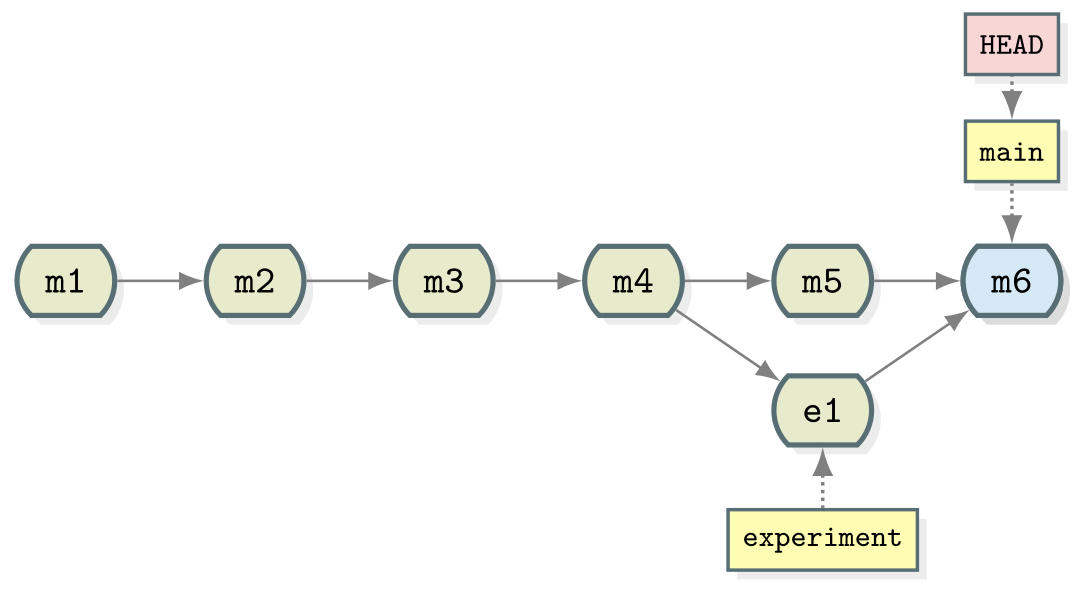
Repository with first merge

Figure 10
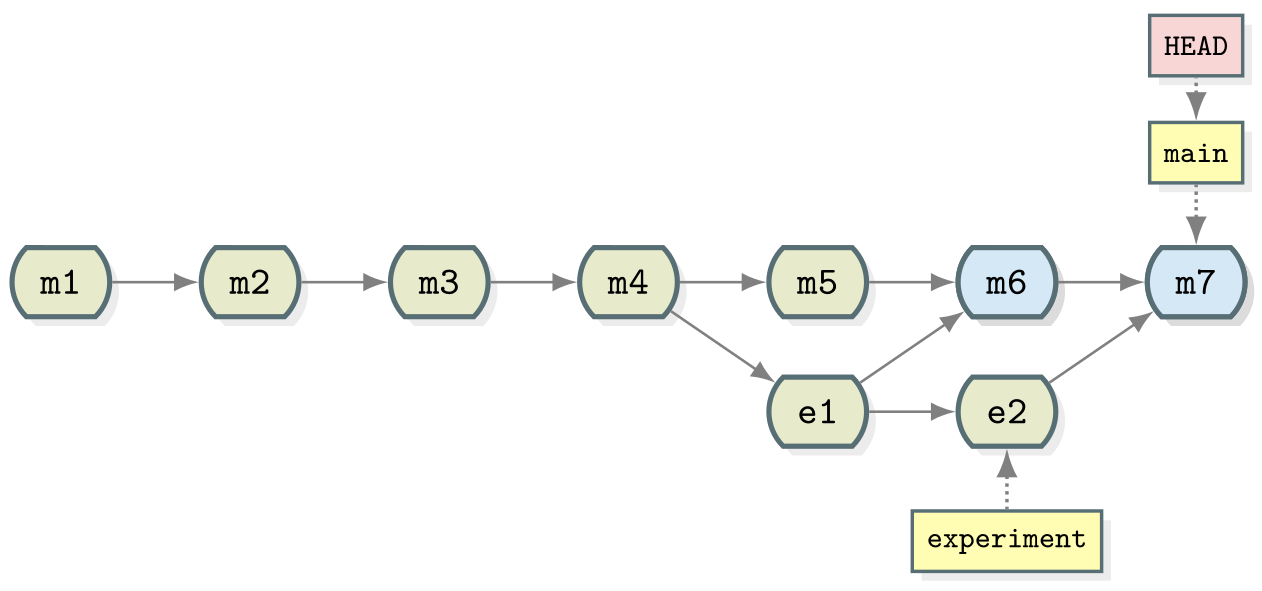
Repository with second merge

Merge conflicts


Figure 1
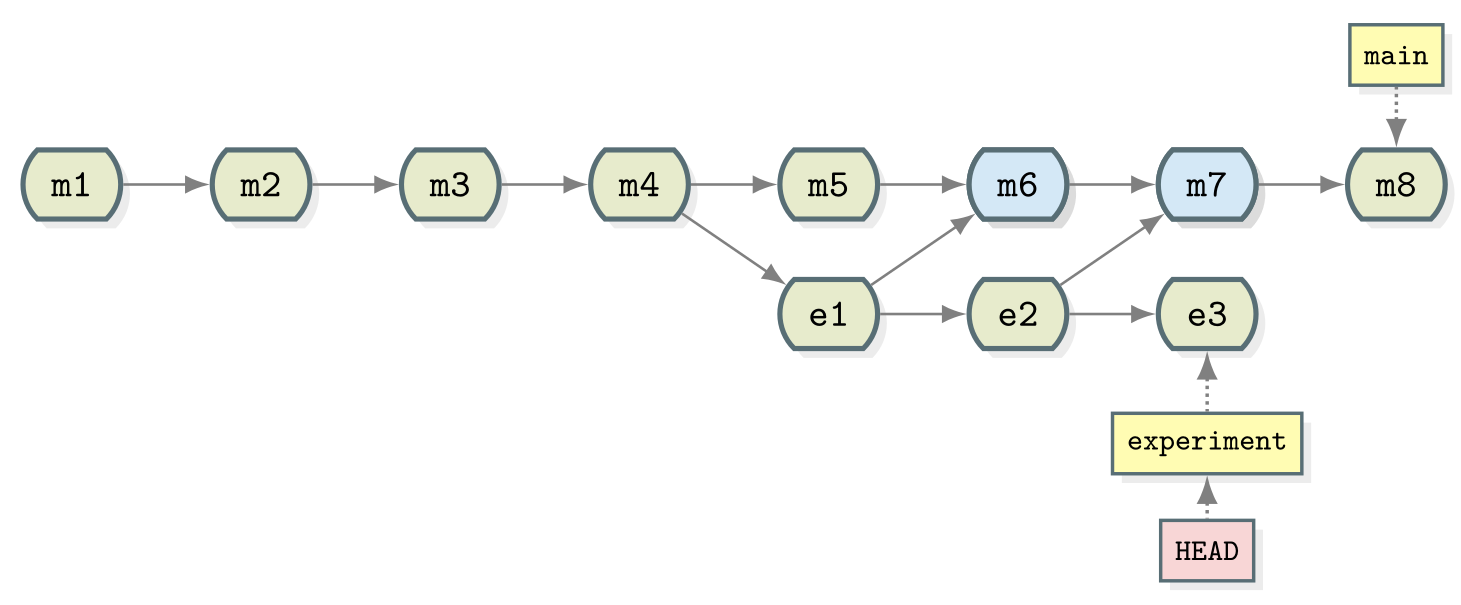
Repository with a merge conflict

Figure 2
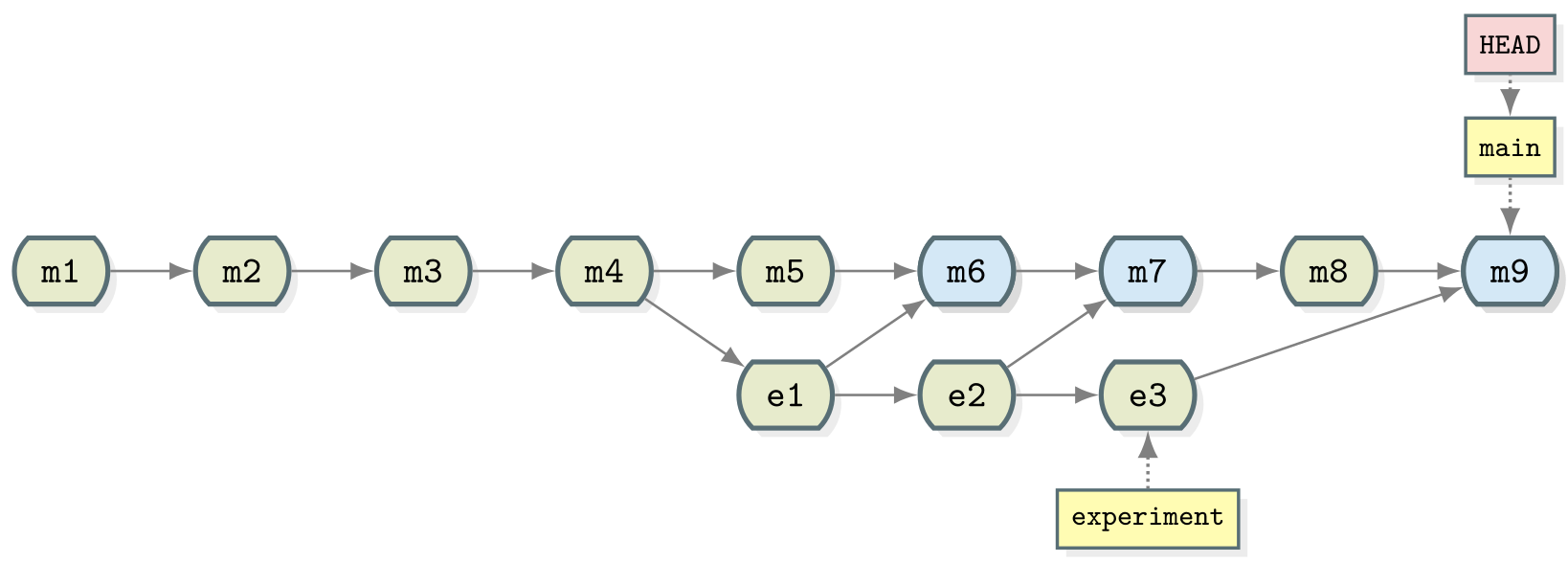
Repository with third merge

Rewriting history with Git


Figure 1
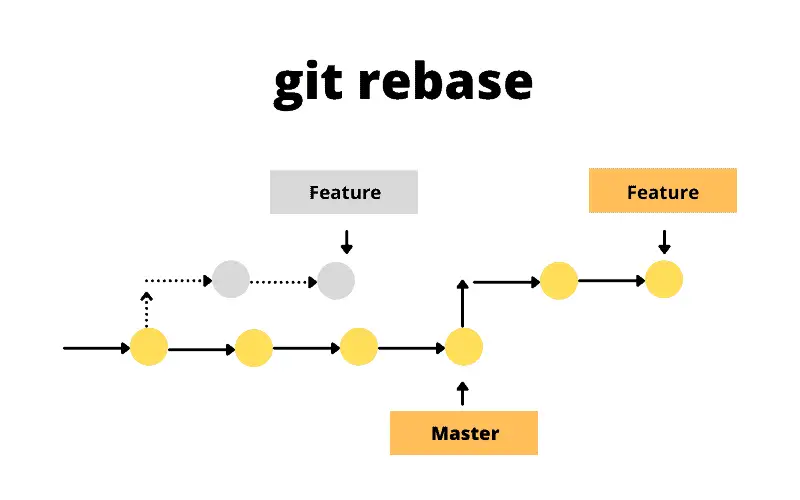
Rebase process with a feature branch being moved to another branch

Pulling and Pushing


Figure 1
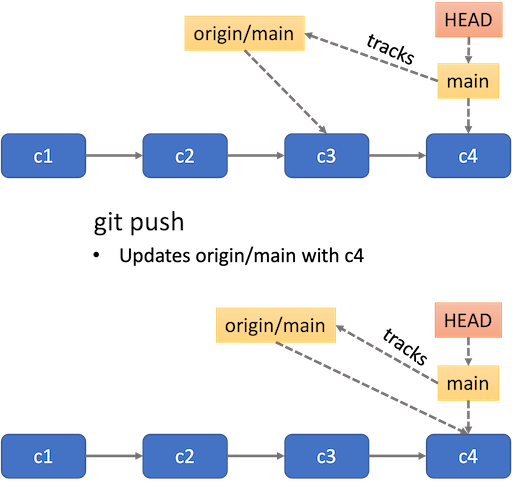
Summary of pushing a branch

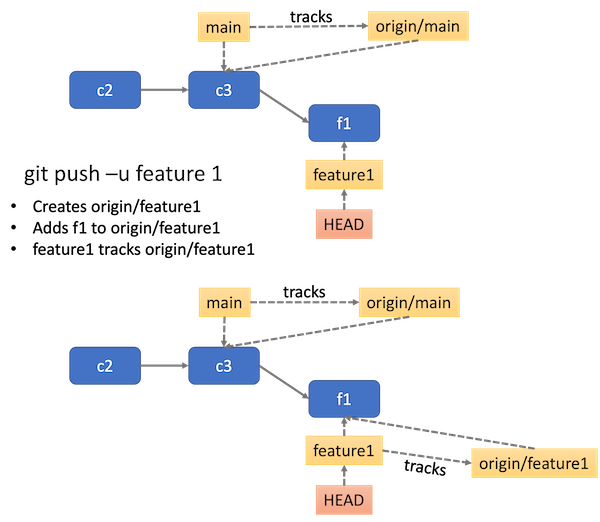
Figure 2

Push a branch without an upstream yet

Figure 3
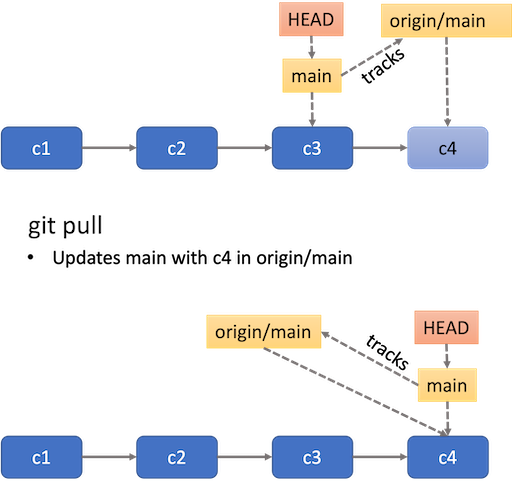
Pull remote changes
Pull remote changes

End of first session


Managing contributions to code


Figure 1
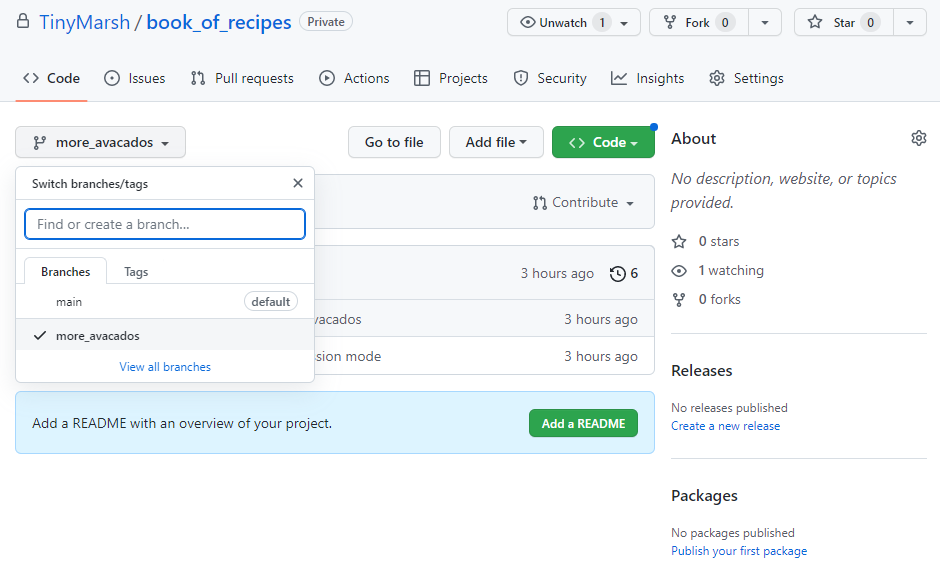
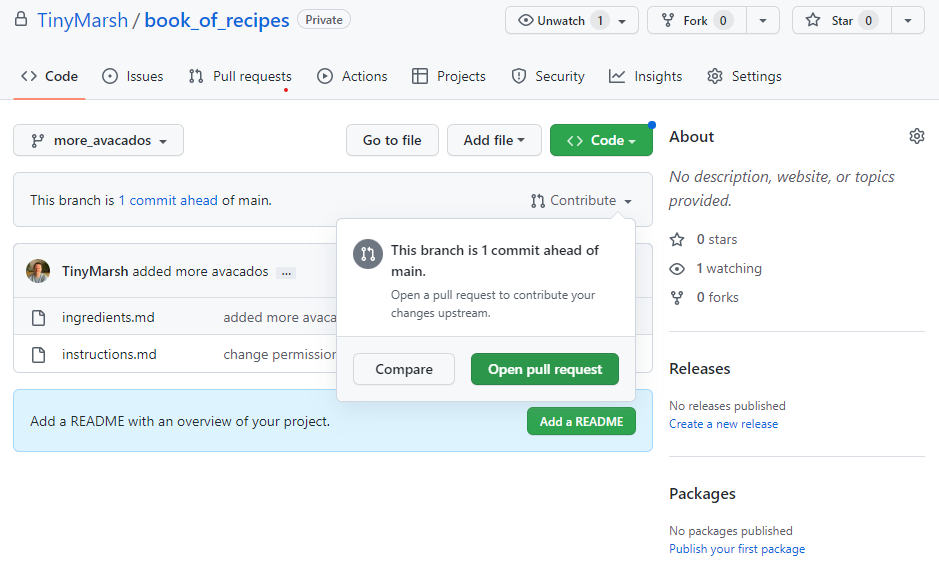
  • On GitHub.com, navigate to your repository and choose your branch which contains your changes from the “Branch” menu. Choose branch

  • Figure 2

  • From the “Contribute” drop-down menu, choose the “Open pull request” button. Open pull request

  • Figure 3

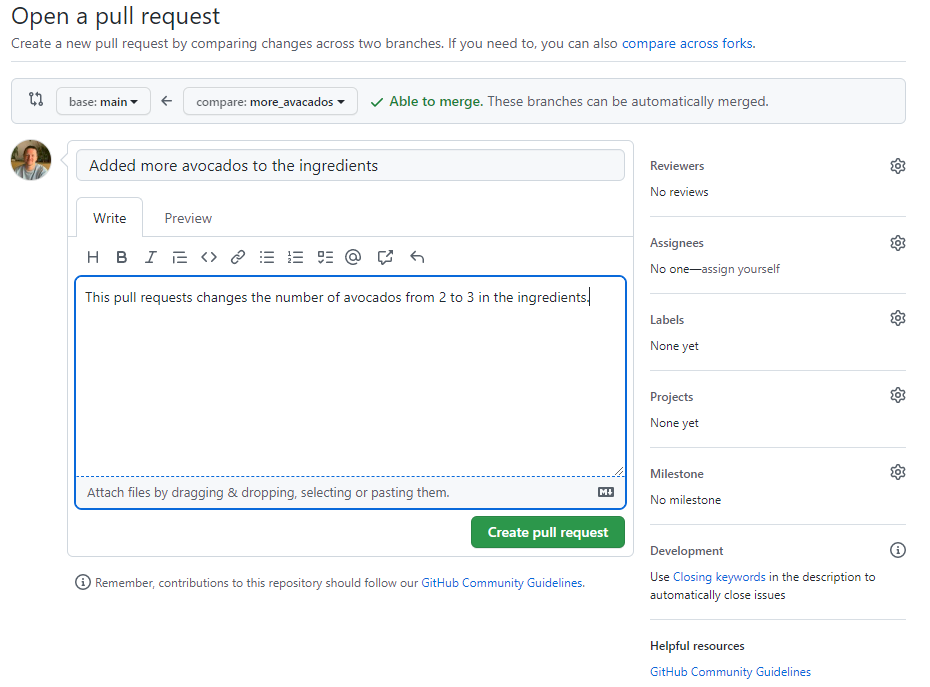
  • From the base branch drop-down menu, choose the branch you want your changes to be merged into, and in the compare drop-down menu, choose the branch which contains your changes. Choose the base and compare branches from the drop-down

  • Figure 4

  • After giving a suitable title and description for your pull request, click the “Create pull request” button. Pull request title and description fields and create pull request button

  • Using GitHub actions for continuous integration


    Figure 1
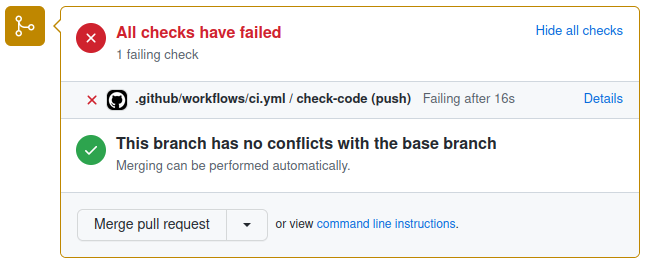
    Panel from GitHub pull request user interface showing failing CI checks
    Panel from GitHub pull request user interface showing failing CI checks

    Figure 2
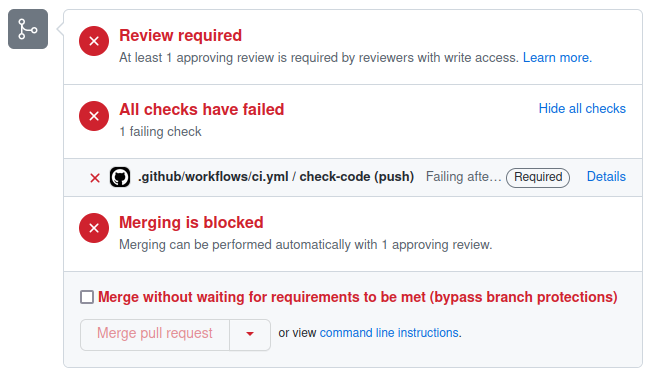
    Panel from GitHub pull request user interface showing failing CI checks with merging blocked due to a branch protection rule
    Panel from GitHub pull request user interface showing failing CI checks with merging blocked due to a branch protection rule

    Code versions, releases and tags


    Figure 1
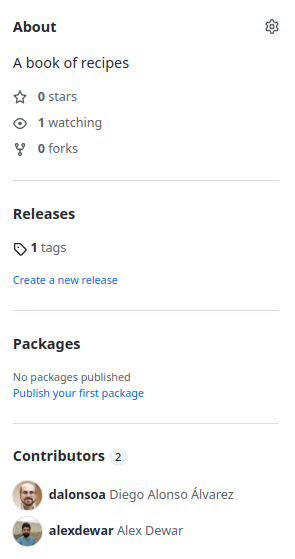
    Release page showing 1 tags
    Release page showing 1 tags

    Figure 2

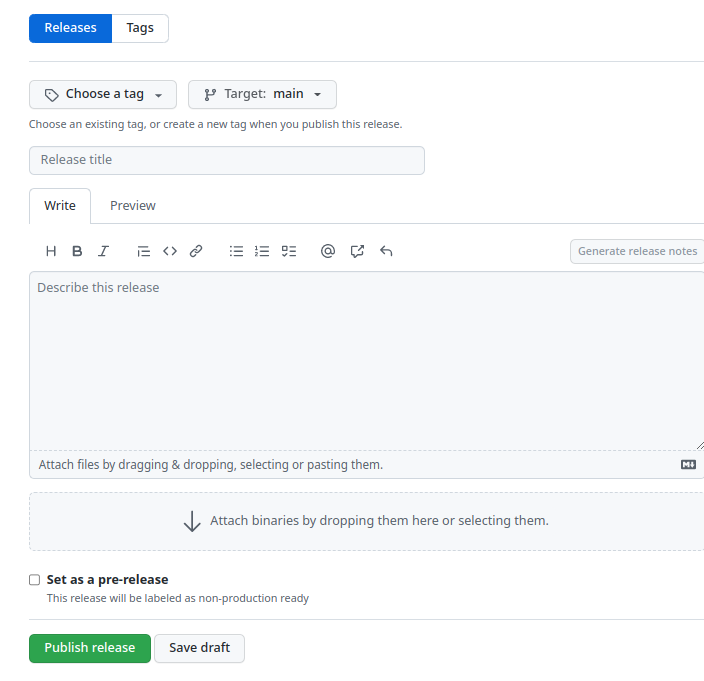
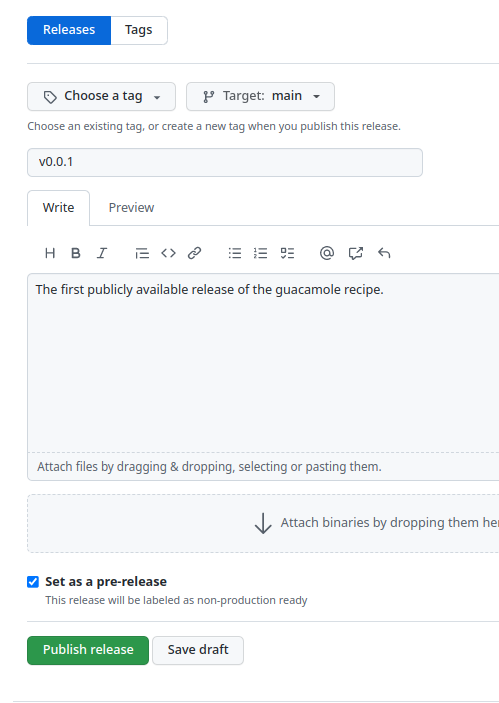
    Page for creating a new release
    Creating a new release

    Figure 3

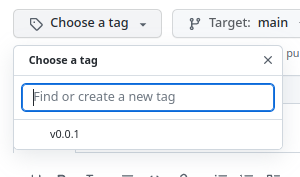
    Process of choosing your tag
    Choose your tag

    Figure 4

    Publish your release
    Publish your release

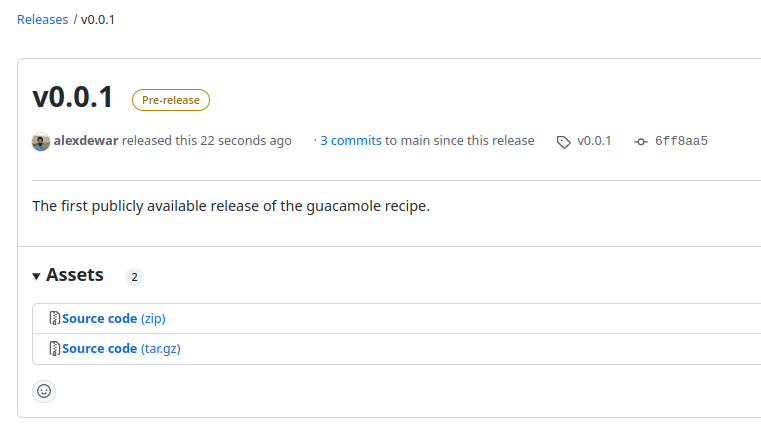
    Figure 5

    View release after publishing
    View release

    Collaborative development


    Figure 1
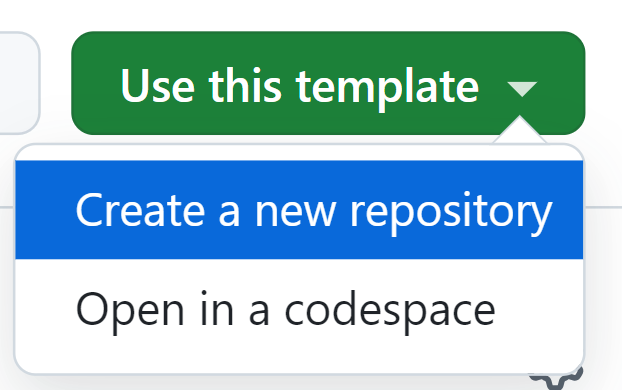
    Use this template
    Use this template

    End of second session